Alert Message Tone: How to Choose and Set One You’ll Hear

An alert message tone is the sound your phone plays when a text or app notification arrives. It’s a separate setting from your ringtone and your alarm, so the sound you hear for a call won’t change when you pick a new text tone. The best tone is short, distinct from your other sounds, and tested at the volume you’ll actually use. Below, you’ll find how to choose one, how to set it on iPhone and Android, and how to make sure the messages that matter most never get lost.
This matters more than it seems. If you live alone, or you’re the person a friend has named to check on their pets, a missed message can be the difference between a quick check and a long wait. A tone you recognize at once helps you respond calmly and quickly.
TL;DR
- A call ringtone, a message alert and an alarm are three separate settings. Changing one doesn’t change the others.
- Pick a short tone you can tell apart from your other sounds, and test it at your real volume instead of trusting its file name.
- On iPhone, go to Settings > Sounds & Haptics. On Android, go to Settings > Sound & vibration > Notification alert. Both let you set tones for specific contacts too.
- For important contacts, give them a unique text tone and, on iPhone, turn on Emergency Bypass so their messages come through even when other notifications are silenced.
- If you rely on alerts for your pets’ safety, make sure the people named in your plan have set this up before you need it.
Table of Contents
- What an alert message tone is, and how it differs from a ringtone or alarm
- How to choose a tone that’s noticeable without being annoying
- How to change your message tone on iPhone
- How to change your message tone on Android
- Give important people their own tone
- Make sure urgent messages get through
- Why this matters for your pets’ backup plan
- Our perspective
- Set up a check-in that alerts your contacts for you
- Where to find free message tones
- A simple setup you can finish in 10 minutes
- FAQ
- Sources
What an alert message tone is, and how it differs from a ringtone or alarm
Your phone treats sounds as separate jobs. A ringtone is designed for incoming calls and can be music or a string of sounds, while notification sounds are used for messages and app alerts. Android Police explains that they serve a similar purpose but live in different settings.
A support guide on this topic makes the same point: a call ringtone, a message alert and an alarm are separate settings, and changing one does not automatically change the others, even if you want the same sound for all three. It also suggests matching the sound to the event:
- Ordinary calls use your ringtone settings.
- Texts or app alerts use text-tone settings or the app’s own notification categories.
- A timed wake-up uses an individual alarm in the Clock app.
That last point is useful when something isn’t working. If a sound isn’t playing, write down exactly which event failed: a normal call, a call from one contact, a text, an app notification or a clock alarm. That one detail usually points to the right setting.
There’s also a small trap in the process. Saving a tone, installing it and selecting it can be three separate actions. A tone sitting in your downloads folder isn’t yet assigned to anything.
How to choose a tone that’s noticeable without being annoying
A good alert tone does two things: it cuts through the background, and it doesn’t wear on you after the fiftieth text. Here’s how to find the balance.
Keep it short
Repeated text alerts get tiresome when the sound is a long musical phrase. iDownloadBlog notes that a long alert for each incoming text is likely to annoy you and the people around you. A tone of about a second or less, with a clear start, is easier to live with and easier to recognize.
Test it at your real volume
Don’t choose by file name. A sound labeled “loud” may not be loud on your speaker. Play the tone at the volume you’ll use during the day, from the spot where you usually leave your phone, such as the kitchen counter or the nightstand.
Make it different from everything else
The most common reason people miss a message is that it sounds like a dozen other things. Choose a tone that isn’t your ringtone, your alarm or the default sound your apps share. On iPhone, apps that don’t offer their own tone option use the default tone, which isn’t very loud. If a message matters, a custom sound set for that sender or app is a better bet than the default.

Set alert volume on its own
By default on iPhone, alarms, timers, alerts and system sounds match your ringtone volume. Apple’s guide explains that you can separate them: go to Settings > Sounds & Haptics, turn off Match Ringtone Volume under Alarms and Timers or Alerts and System Sounds, then drag the slider. That lets you keep calls moderate while keeping alerts audible.
Use vibration as a second signal
If you’re hard of hearing, or your phone is often in a bag or pocket, pair the tone with a vibration pattern. You can pick one in the same menus where you choose the sound. If you want to go further than a tone and rely on something other than sound at all, our guide to automated alerts for deaf pet owners covers other ways to be reached.
How to change your message tone on iPhone
On an iPhone or iPad, Apple Support says you change the sound for calls, texts, email or other notifications like this:
- Open Settings and tap Sounds & Haptics.
- Tap the sound you want to change, such as Text Tone.
- Tap a ringtone or alert tone to preview it, then select it to set it as the new sound.
If you want to change the sound inside the Messages app specifically, Apple’s Messages guide says to go to Settings > Notifications > Messages > Sounds. There you can mute sounds, turn off vibrations, choose a tone through Text Tone, or pick a vibration pattern.
Two details are worth knowing:
- Alerts can be set to repeat at two-minute intervals through Customize Notifications > Repeat Alerts. That’s handy if you tend to miss the first sound.
- On iPhone, the None setting and the Ring/Silent switch affect both incoming and outgoing message sounds, and you can’t mute only one.
How to change your message tone on Android
Android menus vary by maker, but the paths are similar. For Google Messages, Android Police describes these steps:
- Open the Messages app and tap the Menu or Profile icon.
- Choose Message settings, then Notifications.
- Scroll to Default settings > Incoming Messages and select Sound.
To change the sound for all apps, go to Settings > Sound & vibration > Notification alert and choose from the categories of sounds.
On a Samsung Galaxy phone, Samsung’s US support page explains that message alerts are separate from your regular ringtone. To set a default alert for all messages, go to Settings > Sounds and vibration > Notification sound and select the tone you want. Tones for specific contacts can be set separately.
Give important people their own tone
A general tone tells you something arrived. A personal tone tells you who it’s from before you look. That’s worth setting up for the few people whose messages you never want to miss.
On iPhone
Open Contacts, tap the person’s name, tap Edit, then tap Ringtone or Text Tone and choose a new sound, as Apple Support outlines. You can also do it from a conversation: in Messages, tap the contact icon at the top, then Info > Edit > Edit Contact Info > Text Tone, and select a sound or vibration pattern.
On Android
Samsung notes that specific message tones for certain contacts can be set separately from the default. The exact menu depends on your messaging app, so look for notification settings inside the conversation or the contact’s details.
Make sure urgent messages get through
The right tone does nothing if your phone is silenced. Focus and Do Not Disturb modes exist to keep you from being bothered, and that’s usually what you want, until the one message you needed was held back.
On iPhone, Emergency Bypass solves this. Apple states that when you turn it on for a contact, their sounds and vibrations come through even when all other notifications are silenced. To turn it on, open Contacts, select the contact, tap Edit, tap Ringtone or Text Tone, and switch on Emergency Bypass.
Macworld’s walkthrough adds useful detail: Emergency Bypass can be set just for calls or just for texts, and it overrides any Focus mode. Allowed People, the other tool for Focus modes, can’t be limited to one type of message. Its author’s advice is to choose carefully, because the point is to avoid missing something vital, not to let everyone through.
A short checklist you can use today:
- List the two to four people whose messages you’d never want to miss.
- Give each a unique text tone.
- Turn on Emergency Bypass for them on iPhone.
- Set your alert volume separately from your ringtone volume.
- Send yourself a test message from each person and confirm you hear it.
Why this matters for your pets’ backup plan
If you share your home with a dog, cat or other pet and live alone, an emergency plan has two halves. One is how your pets get care. The other is how the right people find out you need help.
That second half depends on messages being noticed. Consider both sides:
- If you’re the emergency contact: a message saying that someone hasn’t checked in is time-sensitive. Give the sender a recognizable tone and make sure it can get through your Focus settings. You want to know within minutes, not hours.
- If you’re the pet owner: the people you name should know what a message from your plan will look like, so they don’t mistake it for spam. Tell them which number it will come from and what to do when they get it.
Our article on emergency text examples has ready-to-send wording you can share with your contacts ahead of time, and our guide to naming pet emergency contacts explains how many people to choose and what to tell them. If a contact is sometimes out of reach, this look at unreachable emergency contacts shows how a second and third name keep the chain intact.
Sound isn’t the only channel, either. Some people prefer a phone call over a text, especially if they don’t use a smartphone. Our piece on voice pet alerts explains how automated calls fit into a wellness check routine.
Our perspective
We built MyPetsSafetyNet around one worry: what happens to your pets if something happens to you and nobody knows?
A good alert tone helps the person on the receiving end notice a message. But a tone only works if there’s a message to hear. That’s the gap we designed our service to close. It sends scheduled check-ins by SMS, phone call or email, and if you don’t respond, it notifies your emergency contacts with your pets’ care details so they can check on you and your animals.
We don’t require a smartphone. Our service works with any phone through texts or calls, which matters for many older and disabled owners who live alone. Setup is designed to take less than 10 minutes, and you can customize your check-in schedule and the countdown before your contacts are alerted.
Our focus is pet care, not just personal safety. The people who are notified get your pets’ instructions directly, so they know who needs feeding, what medication is due and where the leash is. We think that’s the part that lets you relax.
MyPetsSafetyNet
Set up a check-in that alerts your contacts for you
Choosing a good tone helps you hear messages. Our service helps make sure someone sends one when you can’t. MyPetsSafetyNet sends scheduled SMS, phone or email check-ins, and if you don’t respond, it notifies your emergency contacts with full pet care details. You can add up to 5 pets and 3 emergency contacts.
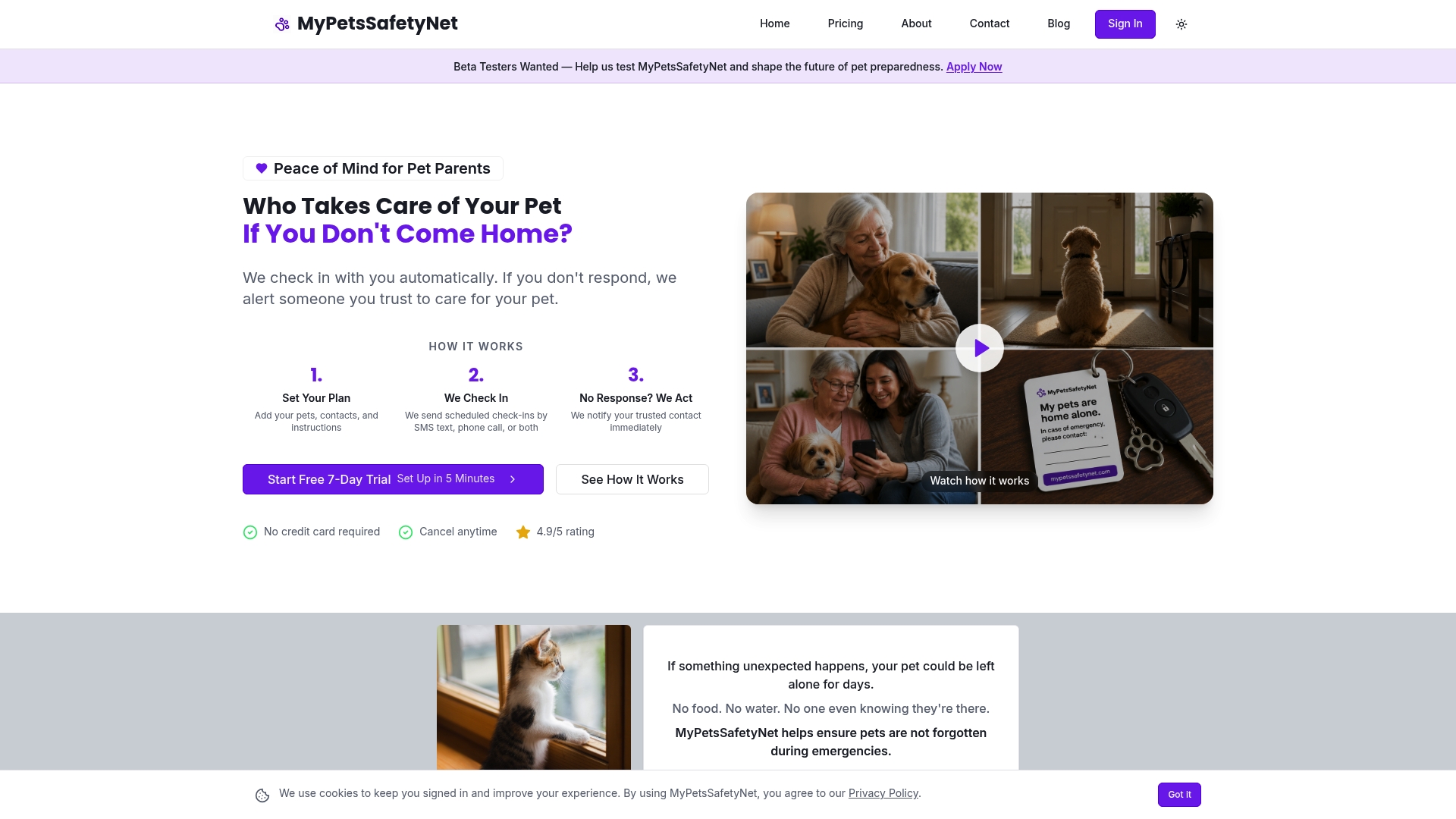
The plan is $6.99 per month on our pricing page, and you can start with a 7-day free trial that doesn’t need a credit card. If you’d like to see how it works first, visit MyPetsSafetyNet. Our post on time-based alert contacts walks through a 10-minute setup with templates.
Where to find free message tones
You don’t need to buy anything to get a good alert sound. Both phones include built-in options, and you can add more.
- Built-in tones: every iPhone and Android phone comes with a set of alert tones. They’re often the safest choice because they’re designed for phone speakers.
- Tone Store (iPhone): Apple’s support page says the Tone Store lets you buy new sounds. Purchases are tied to your Apple Account and payment method, and availability may vary by country or region.
- Free download sites: some sites offer free SMS message tones in MP3 or M4R format, described as short beeps, chimes and plucks for Android and iPhone.
- In-app options: most messaging apps let you choose their own sound in the app’s notification settings.
Before you download anything, check these points:
- Length: choose clips of about a second or less. Long clips grow tiresome fast.
- File type: M4R is the format iPhone uses for tones, while MP3 is common on Android.
- Source: download from a site you recognize, and be cautious about files that ask you to install extra apps.
- Installation: remember that saving, installing and selecting a tone can be separate steps. After downloading, make sure you’ve actually assigned it to text messages.
- Test it: play it at your normal volume before you rely on it.
A simple setup you can finish in 10 minutes
If you want one routine to follow, use this one:
- Pick a short, distinct tone for texts and set it as your default text tone.
- Set your alert volume separately from your ringtone.
- Give your emergency contacts a unique text tone.
- On iPhone, turn on Emergency Bypass for those contacts.
- Ask each contact to do the same for the number your alerts come from.
- Send a test message and confirm everyone hears it.
- Keep your pet care details written down where your contacts can find them.
That last step is easy to forget. A fast response only helps your pets if the person responding knows what they need. A free pet care card is a good way to organize those details, and our guide on emergency contact privacy explains what to share and with whom.
FAQ
Is an alert tone the same as a ringtone?
No. A ringtone is for incoming calls, while an alert or text tone is for messages and app notifications. They’re separate settings, so changing one doesn’t change the other. If you want the same sound for both, you’ll need to set it in each place.
How do I make my text tone louder?
On iPhone, go to Settings > Sounds & Haptics, turn off Match Ringtone Volume under Alerts and System Sounds, then drag the slider. On Android, check your sound or volume settings for the notification volume. Either way, test the sound where you usually keep your phone.
Can I give one contact a different message tone?
Yes. On iPhone, open the contact, tap Edit, then Text Tone, and choose a sound. Samsung Galaxy phones also let you set tones for specific contacts separately from the default. On iPhone you can add Emergency Bypass so that person’s messages sound even when Focus is on.
What is the best alert tone for an emergency message?
The best one is short, different from your other sounds, and clearly audible at your normal volume. Pick one that’s used only for the people or alerts you can’t afford to miss, so you recognize it right away. Pair it with vibration if you’re often away from your phone.
What if I don’t use a smartphone?
You can still be reached. Our service works with any phone through SMS or calls, so a basic phone with a ringer you can hear is enough for check-ins and for contacts to receive alerts.
Sources
- Use tones and ringtones with your iPhone or iPad, Apple Support
- Stop, mute, and change message notifications on iPhone, Apple Support
- Change iPhone sounds and vibrations, Apple Support
- If you don’t receive Messages notifications on your iPhone, Apple Support
- Set a ringtone on your Galaxy phone or tablet, Samsung US
- How to add custom notification sounds for each app on Android, Android Police
- How to let important people get through iOS 15’s Do Not Disturb or Focus settings, Macworld
- How to change alert and notification sounds on your iPhone, iDownloadBlog
- Ringtones, text tones and alarms: which setting changes what
- SMS Message Tones and Ringtones, free MP3 download