Solo Pet Owners: Add Sitter Access in 10 Minutes With Wellness Checks
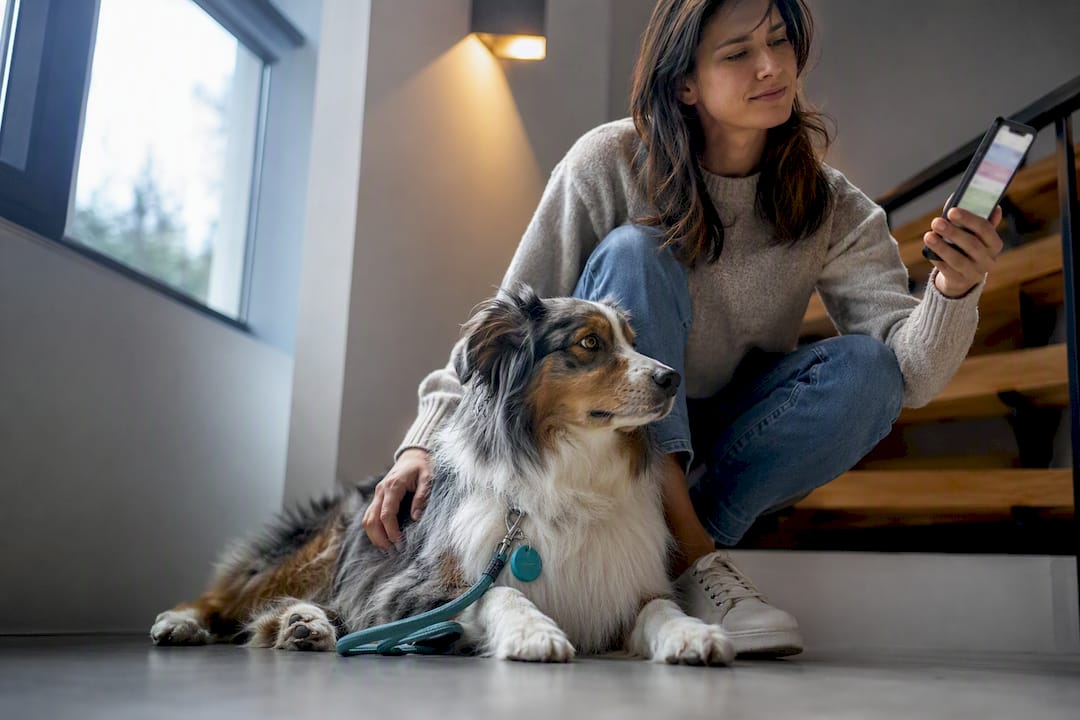
The fastest, safest way to add pet sitter access is a unique, time-limited code or app invite, never a shared master code or a hidden key. Pair it with clear arrival instructions and a written pet care file, then run a live test before your first day away. Turn on notifications so you know the moment your sitter arrives.
TL;DR:
- Setting a time-limited, unique code or app invite is essential to securely grant access and avoid using master keys or hidden spare keys.
- Testing door access before you leave is critical, especially with older hardware or weak Wi-Fi, as code failure at the door is a common mistake.
- Digital lock systems differ in requiring app downloads or PIN entry, with PIN codes often providing simpler, app-free access for sitters.
- For sitters unwilling to install an app, a discreet lockbox or carefully chosen physical key location remains a viable backup, but security risks increase.
- Combining access control with automated wellness check-ins ensures that missed visits or emergencies are detected when owner unreachability occurs.
Table of Contents
- How to Add Pet Sitter Access in Under 10 Minutes
- App Invites vs. PIN Codes: What’s the Real Difference?
- When Your Sitter Won’t Install an App: Lockboxes and Spare Keys
- How Do You Verify a Sitter Before Handing Over Access?
- What Belongs in a Sitter Access Profile and Pet Care File?
- Fixing Access Problems Before They Become Emergencies
- Why Access Control Alone Isn’t Enough
- A Backup Plan for When Sitter Access Isn’t Enough
- Sources
- FAQ
How to Add Pet Sitter Access in Under 10 Minutes
You don’t need a locksmith or a weekend project to get this right. Most of the work happens in an app or on your lock’s keypad, and you can finish before your coffee gets cold.
- Pick the access method that fits your sitter. A smart lock PIN works for someone who doesn’t want another app on their phone; an app invite works better if you’re using shared features like video verification or activity logs.
- Create a unique code or invite, not a recycled one. Give this specific sitter their own credential, then set a start and end window that matches the actual visit or trip dates.
- Send exact arrival instructions. Include which door to use, whether the lock needs a tap-to-wake, and any quirks (a sticky deadbolt, a gate that needs a shoulder bump).
- Attach the pet care file. Feeding times, medication, and emergency vet contact all belong in the sitter’s hands before day one, not texted in a panic later.
- Run a real test. Have the sitter use the code while you’re home or nearby, and confirm you get a notification when they do.
- Set the code to expire automatically or revoke it manually the moment the job ends.
Skipping the test step is the single most common mistake pet owners make. A code that works on your phone screen doesn’t always work at the actual door, especially with older lock hardware or a weak Wi-Fi signal.
App Invites vs. PIN Codes: What’s the Real Difference?
Most smart lock brands give you two paths for sharing access, and they behave differently in ways that matter for a sitter arrangement.
- App invitations typically require the sitter to download the lock’s app and register an account before the invite works, according to Nuki’s support documentation.
- Numeric PINs often skip that step entirely. Some systems let you generate a passcode the sitter simply types in, no app account needed.
- Time-restricted codes only function during the window you set, and most systems will alert you if someone tries the door outside that window, per Guardian Alarm’s guidance for pet owners.
- Access logs and push or text alerts record exactly who used which code and when, giving you a paper trail without calling anyone.
- Remote unlock capability varies by system. Some locks let you buzz someone in from your phone anywhere in the world; others only unlock locally, which matters if your sitter gets stuck outside.
Pro Tip: Ask your sitter directly whether they’d rather use an app or a plain PIN before you set anything up. A background insight from pet sitting workflows suggests many sitters skip apps altogether if a numeric code does the job just as well.
Digital access sharing generally supports granular control, meaning you can hand out a unique code per person, schedule recurring windows for a weekly dog walker, and pull logs on demand, according to Smarthome Muse’s guide to sharing lock access.
When Your Sitter Won’t Install an App: Lockboxes and Spare Keys
Not every sitter wants a new app, and that’s fine. A lockbox is the next best option to a smart lock, keeping a physical key off-site instead of under a doormat where anyone can find it.
- Choose a location that’s discreet but easy to describe, like a specific fence post or a side gate hook, and take a photo to send your sitter.
- Avoid obvious spots. Front porch planters and welcome mats are the first place anyone looking for a hidden key checks.
- A spare key carries real duplication risk once it leaves your hands, so hand one over only when a lockbox or smart lock isn’t possible, and change your locks if a key ever goes missing.
- Line up a local backup, a neighbor or nearby friend, in case your sitter arrives and the lockbox code doesn’t work or the key doesn’t turn.
Security guidance generally steers pet owners away from hidden keys altogether, recommending auditable digital methods paired with a video doorbell for visual confirmation whenever that setup is available.
How Do You Verify a Sitter Before Handing Over Access?
Access control only solves half the problem. The other half is knowing the person on the other side of that door is who you think it is, and that they actually showed up.
- Ask for a photo ID or references before the first visit, especially if you found the sitter through an app or a local listing rather than a personal referral.
- A short video call ahead of time lets you match a face to a name and get a feel for how they handle questions about your pet’s routine.
- Pair every access event with visual confirmation where you can. A video doorbell photo or a simple check-in selfie from the sitter closes the loop fast.
- Turn on entry notifications from day one, and actually review the logs after the first few visits instead of assuming everything went fine.
- Write out a short emergency plan, including at least one local backup contact, in case the sitter can’t reach you.
Pro Tip: A video doorbell paired with your smart lock gives you remote visual proof someone arrived, on top of the access log timestamp, which matters most if you’re traveling somewhere with spotty cell service.
What Belongs in a Sitter Access Profile and Pet Care File?
A good pet care file answers every question a sitter might have without needing to text you mid-visit. Build it once and reuse it for every sitter you hire going forward.
- Pet identification: current photos, microchip number, and up-to-date vaccination records.
- Daily routine: feeding amounts and times, exercise needs, crate rules, and any separation anxiety cues to watch for.
- Medication details: drug names, dosages, exact administration steps, and your regular vet’s phone number.
- Access instructions: lock type, how the code or app invite works, and alarm disarm steps if your home has one.
- Emergency authorization: a written note naming who can approve emergency vet care and transport your pet if you can’t be reached.
Some pet tech platforms, like Fi’s help center for walkers and sitters, let you grant view-only access to a pet’s location without handing over full account control, which is worth using if your sitter only needs to check where your dog wandered on a walk. A digital pet care file built once can be reused and updated for every sitter you hire after that.
Fixing Access Problems Before They Become Emergencies
Most sitter access failures trace back to skipped steps, not bad technology.
- Run a dry test before you leave town, and get a direct confirmation from your sitter that the code or invite worked.
- Revoke access the moment the job ends. Unique per-sitter codes make this a one-tap fix instead of a full lock reset.
- Check the access log after each visit to confirm arrival and departure times line up with what you expected.
- If your sitter gets locked out, use remote unlock if your system supports it, or fall back to the local contact you lined up in advance.
Unique codes per person aren’t just tidier. They’re what makes instant, precise revocation possible when a sitting arrangement ends early or unexpectedly.
Why Access Control Alone Isn’t Enough
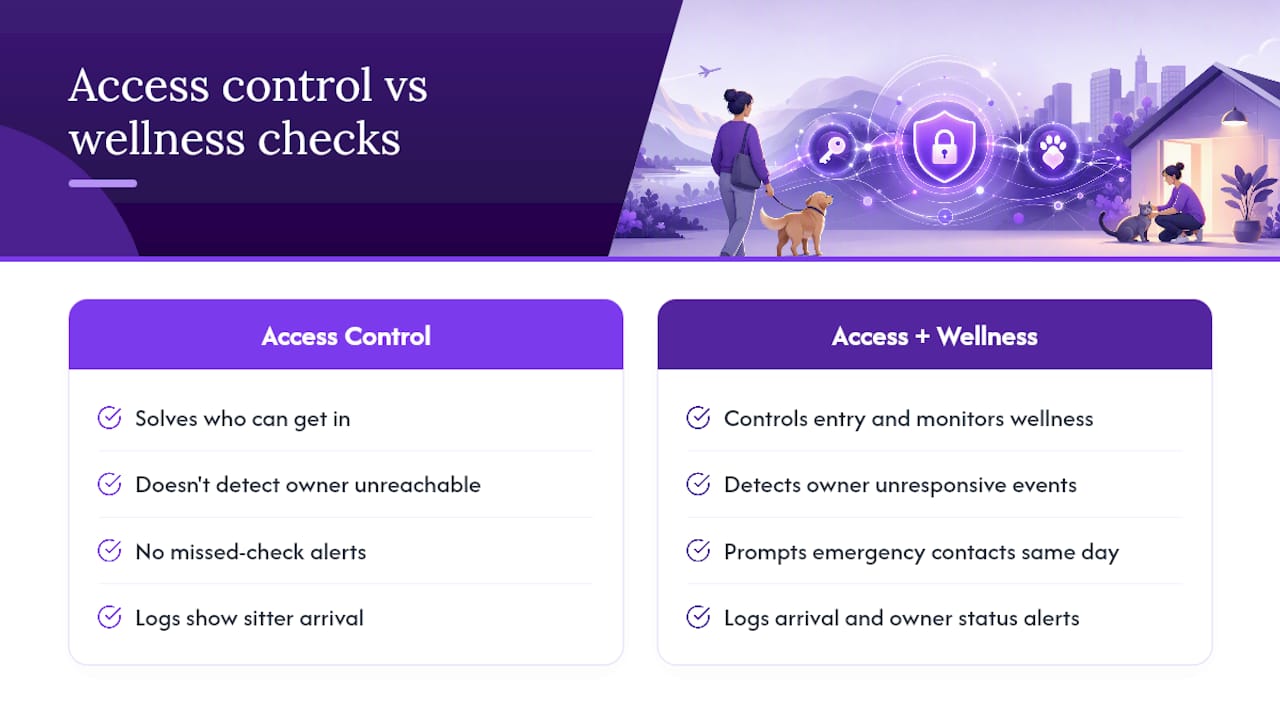
Smart locks and lockboxes solve who can get in. They don’t solve what happens if you, the owner, become unreachable and no one notices. A missed check-in alert system closes that second gap by prompting your emergency contacts the same day you fail to respond.
Access logs tell you a sitter arrived. They can’t tell anyone that you didn’t wake up, fell, or ended up in the hospital with no one aware your pets are waiting on a feeding schedule. Pairing entry controls with automated wellness monitoring removes that single point of failure, whether it’s a lost key, a missed visit, or something happening to you directly.
— MyPetsSafetyNet
A Backup Plan for When Sitter Access Isn’t Enough
Setting up sitter codes and lockboxes handles the day-to-day. It doesn’t cover what happens if you’re the one who goes silent, whether from a medical emergency, a fall, or simply losing your phone somewhere without signal. That’s the gap MyPetsSafetyNet exists to close.
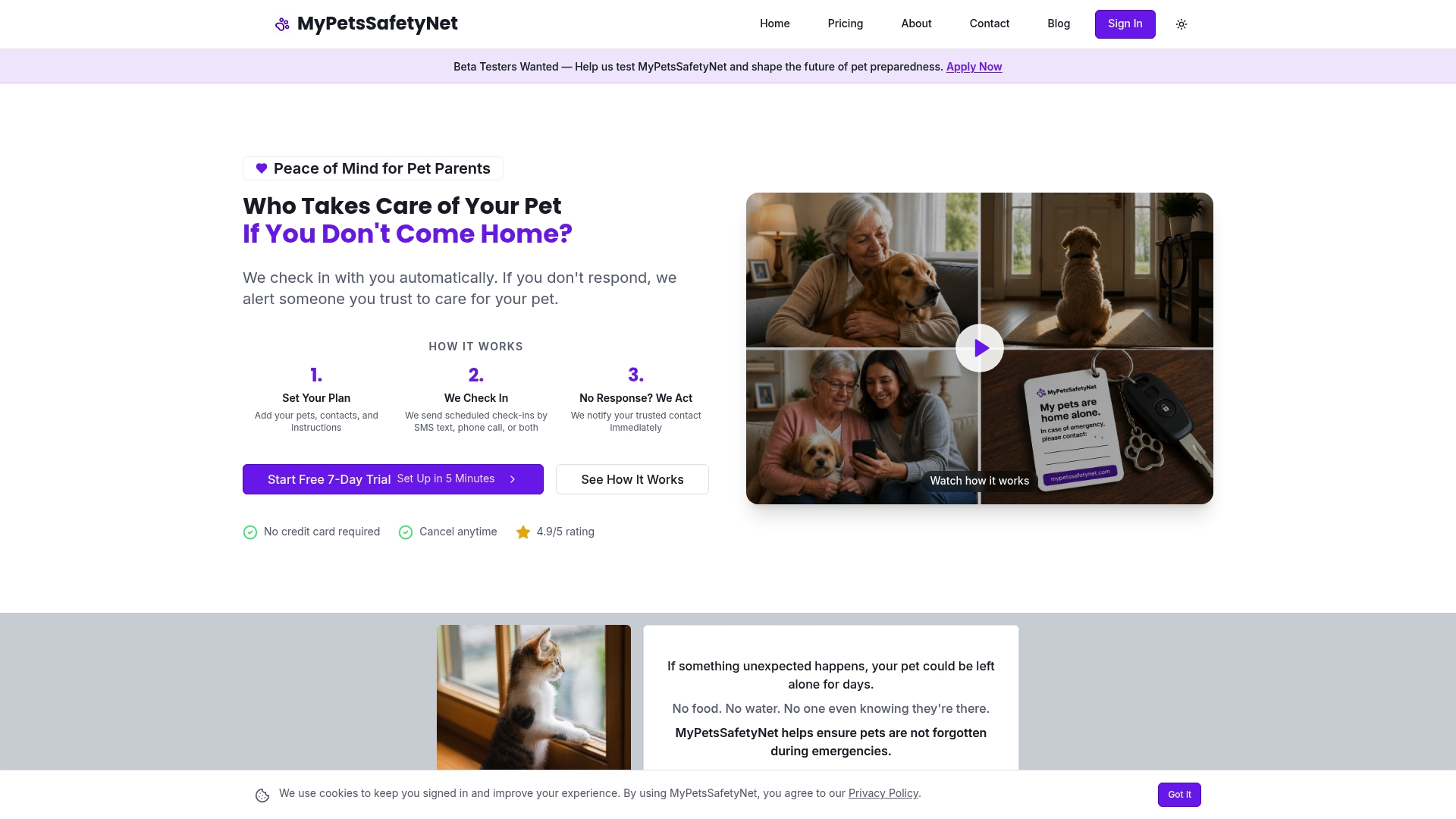
MyPetsSafetyNet sends scheduled wellness check-ins by text, phone, or email, and if you miss one, it escalates to your emergency contacts with your pet’s full care details already in hand, no scrambling to find a vet number or figure out feeding times. It works alongside whatever sitter access setup you already have, adding a layer that notices when a person goes quiet rather than just tracking who used a door code. Combine secure automated check-ins with your existing sitter arrangement, and a missed visit or a personal emergency stops being a single point of failure. Grab your free pet care card and start a free trial today to see how the check-in schedule fits your routine.
Sources
- Pet Sitter Smart Lock Guide to Securely Manage Access | Guardian Alarm
- Add & manage Lock Permissions – Nuki Support
- How to share smart lock access safely | Smarthome Muse
- Tedee
FAQ
How Do I Add a Pet Sitter to My Smart Lock?
Generate a unique PIN or app invite in your lock’s app, set a start and end date matching the sitting job, and test it with your sitter before you leave.
Does My Sitter Need to Download an App?
Not always. Many smart locks let sitters enter with a numeric PIN with no app or account required, while app invites usually do require registration.
How Do I Revoke Sitter Access After the Job Ends?
Delete or deactivate the sitter’s unique code the same day the job ends, or set it to auto-expire in advance so you don’t have to remember.
What If My Sitter Can’t Get Into My Home?
Arrange a local backup contact ahead of time, and use remote unlock if your system supports it; a photographed lockbox location also helps avoid confusion at the door.
Can MyPetsSafetyNet Help If I’m Unreachable During a Sitter’s Visit?
Yes. Scheduled check-ins notify your emergency contacts if you miss a response, adding backup coverage beyond what door access alone provides.