Manage Up to Five Pet Profiles: Emergency Ready for Solo Owners

Manage multiple pet profiles by creating a separate record for each animal, filling out a prioritized checklist of fields, turning on per-pet reminders, and sharing access with the people who might need it in a pinch. Add each pet, complete the essentials, set the alerts, then extend access to caregivers. The rest of this guide walks through the field checklists and setup steps that make it stick.
TL;DR:
- Most pet profile setup involves creating a clear name, uploading a current photo, and filling core details like breed, age, weight, and medical info.
- Standard fields should include identity, health details, daily care instructions, and emergency contacts, with consistent formatting for maximum usefulness.
- Managing multiple pets effectively requires individual profiles, separate reminders, permission tiers, secure access sharing, and color-coded calendars.
- Regular review and offline backups are essential to keep pet information current, especially for medication, weight, or veterinarian updates.
- Professional caregivers prioritize verifying medications, emergency contacts, and behavior flags over feeding schedules when inheriting multi-pet accounts.
Table of Contents
- How Do You Add, Edit, and Remove Pet Profiles?
- What Fields Should Every Pet Profile Include?
- What’s the Best Workflow for Switching Between Pets?
- How Often Should You Review and Back Up Pet Profiles?
- How Does MyPetsSafetyNet Support Multi-Pet Households?
- What Pet-Care Pros Check First When They Inherit a Multi-Pet Account
- Get Your Pets’ Profiles Emergency-Ready Today
- Sources
How Do You Add, Edit, and Remove Pet Profiles?
Most pet care apps use the same basic add-pet flow, and once you know it, you can replicate it anywhere. The standard sequence is: open your pets or clients section, tap “Add pet,” upload a clear photo, fill in the profile sections, then save. Support documentation from platforms like Rover confirms this pattern holds across most consumer pet apps.
Here’s the sequence to follow for each animal:
- Create the profile. Name it clearly, using the pet’s actual name, not a nickname only you understand.
- Upload a current photo. A recent, well-lit face shot helps a sitter or emergency contact identify the right animal fast.
- Fill the core fields. Breed, birthdate or age estimate, weight, and sex first, then move to medical details.
- Save and review. Check that nothing autofilled incorrectly, especially weight units or date formats.
Editing works the same way in reverse. Most fields live in a “profile” or “details” tab, and updates (a new medication, a weight change after a vet visit) usually take seconds.
Deactivating and deleting are not the same thing. Deactivation keeps the pet’s history intact but stops active scheduling, which matters if a pet is staying with a relative temporarily. Deletion removes the data permanently, though some platforms offer memorialization options for a pet that has passed, according to Rover’s support documentation.
Pro Tip: If you’re entering three or more pets at once, do all the photos first, then all the names, then all the medical fields. Batching by field type is faster than finishing one profile completely before starting the next.
What Fields Should Every Pet Profile Include?
A pet profile is only useful to someone else if it answers the questions they’ll actually ask under pressure. Sitters, vets, and emergency contacts need specifics, not vague notes. Support resources from platforms like PetDesk consistently point to the same core set of fields as non-negotiable.
Identity basics:
- Name, current photo, species, and breed
- Sex, date of birth or estimated age, and current weight
Health information:
- Veterinarian name and phone number
- Current medications with dosage and schedule
- Known allergies, flagged clearly at the top of the profile
- Vaccine dates and microchip or ID number
Daily care details:
- Feeding schedule, including portion size and food brand
- Walking preferences or exercise needs
- Behavior flags (resource guarding, fear of strangers, reactivity to other dogs)
Emergency and access data:
- At least one emergency contact beyond yourself
- Permission level for anyone with access to the profile
- A “last updated” tag so caregivers know how current the information is
Formatting matters more than people expect. Write weight in one consistent unit across every pet, spell out medication times instead of using shorthand, and use full names instead of initials for anyone listed as a contact. A profile with “give pill AM” is far less useful than one that says “give 5mg thyroid tablet at 7:00 AM with food.” Consistent field formatting is one of the biggest differentiators between profile systems that actually get used under stress and ones that get ignored.
What’s the Best Workflow for Switching Between Pets?
Households with more than one animal run into a specific failure mode: reminders get merged, names get confused, and nobody notices until a dose gets skipped. Treating each pet as an independent record with its own timeline, rather than folding everyone into one shared to-do list, solves most of this. Platforms built around multi-pet management center their design on exactly this principle: a single dashboard with a fast switcher and separate timelines per animal.
Follow this workflow to keep multiple pets straight:
- Name profiles by pet, not by category. “Max, Golden Retriever” beats “Dog 1” every time someone is scanning a list quickly.
- Set reminders at the pet level, not the household level. A notification that says “give Max his heart medication” prevents someone from accidentally dosing the wrong animal.
- Assign permission tiers. Give family full edit access, give sitters view-and-check-in access, and give vets read-only access to medical history.
- Share access securely. A QR code or a direct email invite is safer and faster than texting a password.
- Color-code the calendar. Assigning each pet a distinct color across appointments and reminders makes overlapping schedules easier to spot at a glance, a tactic backed by multi-pet tracking tools built specifically for this problem.
Pro Tip: If your app caps the number of visible profiles on the home screen (some show only five at a time, per Furbo’s documentation), pin your most time-sensitive pets, like one on daily medication, to the top of the list.
How Often Should You Review and Back Up Pet Profiles?
Profiles decay quietly. A pet gains weight, changes medication, or gets a new vet, and if nobody owns the update, the record goes stale right when someone needs it most.
Set a review cadence and assign ownership. A monthly check-in works for most households; quarterly is the outer limit for anything involving medication or weight-sensitive dosing. Decide upfront whether the primary owner, a co-owner, or a regular caregiver is responsible for keeping each pet’s record current.
Back up what you build. Export profiles to PDF periodically so you have an offline copy that works even without app access, something worth pairing with a printable pet care card for true offline redundancy during a power outage or a phone failure.
Keep certain fields private. Home address and full medical history don’t need to be visible to a dog walker who only needs feeding times and a leash reminder. Restrict sensitive fields to owner and vet access only.
| Situation | What to Do |
|---|---|
| Pet is lost | Update status immediately, notify all contacts with access |
| Pet passes away | Deactivate rather than delete to preserve medical history |
| Ownership transfers | Export full record, then transfer or archive the original |
How Does MyPetsSafetyNet Support Multi-Pet Households?
Managing several animals gets harder exactly when you can least afford confusion, during a medical emergency, a hospital stay, or any moment you can’t respond to a check-in. MyPetsSafetyNet was built around that gap.
Here’s how the feature set maps to the checklist above:
- Profile fields for up to five pets, covering medication, feeding schedules, and vet contacts in one place
- Escalation workflows that notify up to three emergency contacts if you miss a scheduled check-in
- Customizable countdown intervals so alerts match your actual risk level, not a generic default
- Ready-to-use feeding schedule templates that speed up setup instead of making you build fields from scratch
A solo owner managing two dogs on different medication schedules, for example, can set separate reminder windows for each animal and list the same emergency contact for both, cutting setup time roughly in half compared to building profiles from a blank template.
What Pet-Care Pros Check First When They Inherit a Multi-Pet Account
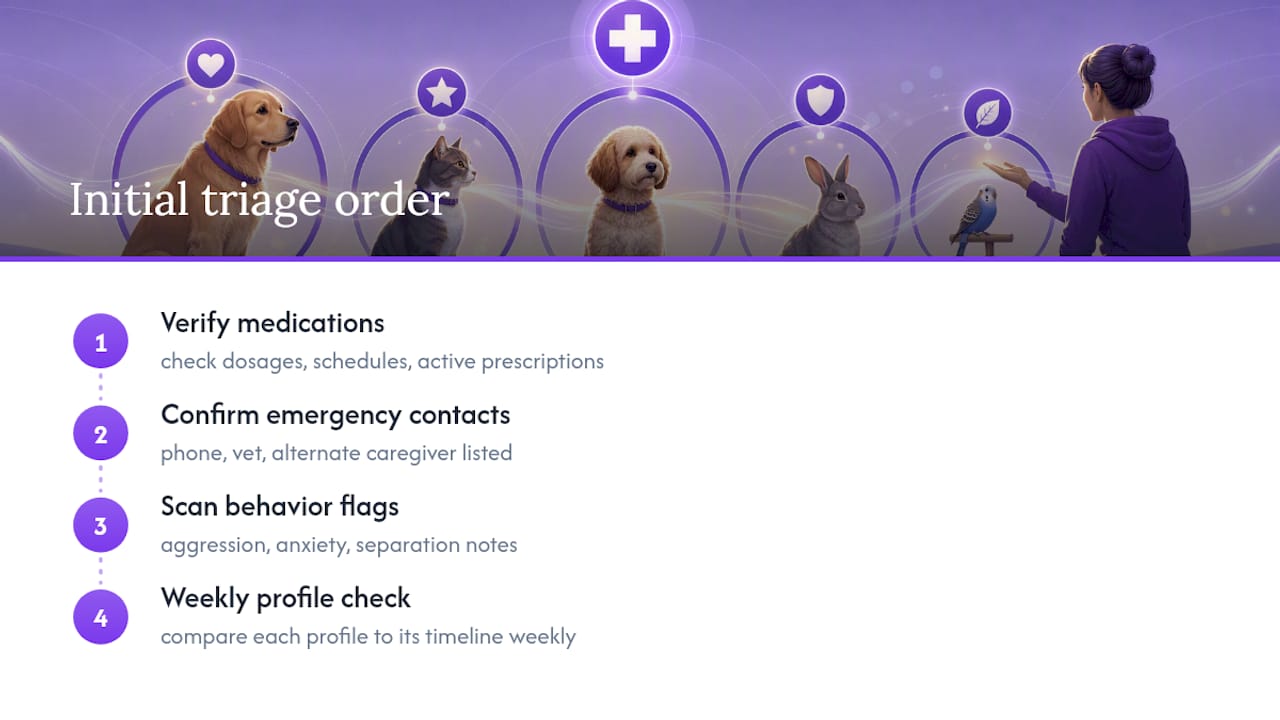
When a professional sitter or vet tech takes over an existing multi-pet account, the triage order is always the same: verify medications first, confirm emergency contacts second, then scan for behavior flags. Skipping straight to feeding schedules is the most common rookie mistake, because a missed medication carries more risk than a missed meal.
Ambiguous pet names and merged reminders cause more real-world errors than any technical failure. The fix is boring but effective: check every profile against its own timeline once a week, on the same day, every time.
— MyPetsSafetyNet
Get Your Pets’ Profiles Emergency-Ready Today
A well-organized profile is only half the safety net. The other half is making sure someone actually gets notified if you’re not able to check on your pets yourself. MyPetsSafetyNet closes that gap with automated wellness check-ins, sent by SMS, phone, or email, that escalate to your emergency contacts with full pet care details if you don’t respond.
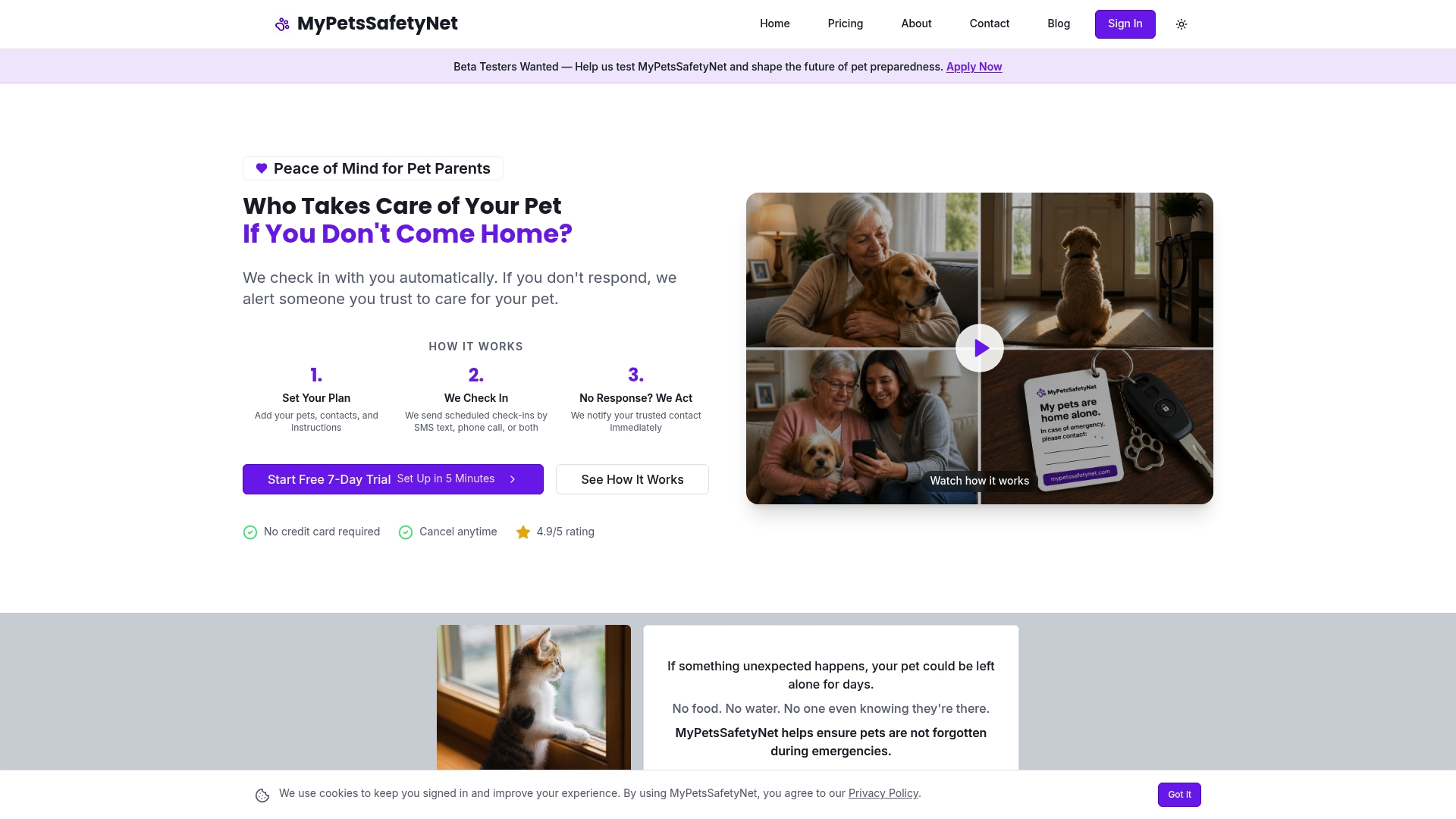
Setup takes a few minutes: build a profile for each pet using the same field checklist covered above, add up to three emergency contacts, and set a countdown interval that matches your post-adoption routines in your daily routine. If you travel often or live alone with health concerns, a shorter interval gives you a faster safety margin. The service pairs directly with the feeding schedule documentation and profile blocks described earlier, so you’re not starting from a blank page.
Start your free trial and get your pets’ profiles connected to a real emergency workflow, not just a folder of notes someone might never find in time.
Sources
- How do I add, edit, or delete a pet profile
- Adding, Removing, or Editing My Pet’s Profile
- Multi-Pet Management | PawZync - Manage Multiple Pets in One Account